No App, No Phone Numbers: Collect Event Photos Without WhatsApp
SnapPix TeamPublished 15 Sept 202629 min read

The fastest, most reliable way to collect photos without WhatsApp is a QR-code browser upload gallery: guests scan a code, add their photos through their own browser, and never need to install anything or hand over a phone number. Shared cloud albums, AirDrop and email or WeTransfer all work as backups for smaller groups. The QR method wins because it keeps every photo at full resolution and never exposes anyone’s contact details.
TL;DR:
- The QR-code browser upload gallery preserves original photo quality and keeps guest contact information private, making it ideal for large and mixed-device groups.
- Setting up a QR gallery takes about fifteen minutes with testing on different phones, and proper signage and a helper significantly increase guest participation.
- For events under 20 guests, AirDrop or cloud folders work well, but for groups from 20 to 150, QR galleries outperform other methods in ease and privacy.
- Large events over 150 guests should rely on QR galleries, as other methods struggle with volume, device compatibility, or privacy concerns.
- Paid platforms like SnapPix offer a one-time event fee that covers unlimited uploads and full-resolution downloads, often cheaper than ongoing cloud storage costs.
Every method for collecting event photos trades off ease, quality, and privacy differently, and the right choice depends on how many guests you’re dealing with and what phones they’re carrying.
A QR-code browser upload gallery works by giving each guest a link, usually via a printed or displayed QR code, that opens straight into a private webpage. There’s no app to download and no account to create. Guests tap “add photos,” pick images from their camera roll (or shoot live through the browser), and they’re done in under thirty seconds. Because the upload happens directly through the browser, platforms like Viallo report that original file sizes are preserved rather than compressed, which matters enormously if you want prints or a proper album afterwards.
Shared cloud albums (Google Photos or iCloud Shared Albums) rely on guests already having, or being willing to create, an account with that specific ecosystem. That’s fine if your whole guest list uses iPhones, but the moment you mix Android and Apple users, one half of the room hits a wall. Apple’s own documentation on Photos confirms that Shared Albums and AirDrop both carry this kind of device dependence.
Cloud folders like Google Drive, Dropbox or OneDrive can work well for smaller, trusted groups. The catch is permissions: get them wrong and you either force everyone to sign in, or you accidentally leave the folder open to anyone with the link.
AirDrop is genuinely the fastest option for a handful of people standing in the same room, but it doesn’t scale. Pairing devices one at a time for forty guests at a wedding reception isn’t realistic.
Email and WeTransfer preserve quality nicely if guests attach original files rather than forwarding a WhatsApp-compressed copy, but they demand more effort from each guest and tend to produce a scattered pile of separate emails rather than one organised gallery.
Here’s how the main methods stack up:
For picking a method by event size:
Setting this up properly takes about fifteen minutes, most of it testing rather than building.
Before the event:
On the day:
Common snags and fixes: if guests hit an upload limit, check your gallery’s settings before the event, not during it. If a browser tries to force a sign-in wall, you’ve likely picked a method that isn’t truly account-free, so switch to a dedicated event gallery link instead.
Pro Tip: Put the QR code on the back of the seating chart or menu card, not just on a poster by the entrance. Guests look at menus for minutes at a time; they walk past posters in seconds.
Shared albums, cloud folders, AirDrop and email all have a place. The trick is knowing their failure points and working round them.
Google Photos and iCloud Shared Albums are genuinely easy for guests already inside that ecosystem, since adding a photo takes two taps. The problem is account dependence: a mixed-device wedding party means some guests can’t join at all without setting up a new account on the spot, which most won’t bother doing.
Cloud folders (Drive, Dropbox, OneDrive) avoid the account-wall problem if you set permissions correctly. Choose a link that allows “anyone with the link” to upload, rather than one that restricts access to specific signed-in accounts. Microsoft’s own guidance on OneDrive sharing permissions explains how to set view versus edit access correctly, which matters because the wrong setting either locks guests out or leaves the folder open to strangers who stumble on the link.
AirDrop works instantly for close groups but only device to device. Both phones need Bluetooth and Wi-Fi on, and the receiving phone has to accept each transfer manually, which becomes tedious past a dozen people.
Email and WeTransfer preserve original quality only if guests send actual attachments rather than forwarding photos that have already passed through a messaging app’s compression. Ask guests explicitly to attach files directly from their camera roll, not to forward an existing chat thread.
Protecting guest privacy takes about two minutes of setup and a single line of wording on your invitation.
Suggested wording: “Scan this code to share your photos with us. Uploads are private and only used to build our shared event gallery.”
Technical controls worth setting:
Moving away from group chats matters here specifically because those chats routinely expose every participant’s phone number to every other participant. A private, unindexed gallery accessible only via a link or PIN sidesteps that problem entirely, which is one of the main reasons organisers are moving away from WhatsApp groups for this in the first place.
A platform built around the no-app QR pattern described above solves the problems that cause guests to give up on photo sharing.
Requiring an app or a phone number is the single biggest reason event guests never upload their photos at all. Remove that barrier and participation follows naturally.
Some platforms offer no app installation for guests or hosts, a multi-month upload window for adding photos after events, AI-driven smart albums that sort contributions automatically, and photo challenges that encourage guests to capture specific moments.
For a typical wedding or corporate reception, setup looks the same: create the gallery ahead of time, print the QR code onto table cards or a welcome sign, and let guests upload throughout the event and for weeks afterwards as photos surface from their own camera rolls. It’s the browser-upload approach this article recommends, built specifically for events rather than adapted from a general file-sharing tool.
Commercial photo-collection platforms built for events typically charge a one-time fee per event rather than a recurring subscription, which suits how most people actually use them: once, for one wedding or one office party, not every month.
SnapPix follows this model with a single flat fee that activates the gallery for your event, covering unlimited guest uploads for the duration of the upload window and full-resolution downloads afterwards. There’s no per-guest charge and no separate app purchase, since there’s no app at all. Some platforms offer an optional paid extension if you want the gallery to stay live longer than the standard window, which is worth considering for events like graduations or reunions where photos trickle in slowly over weeks rather than days.
Compare that against the hidden cost of “free” methods: a shared cloud folder costs nothing upfront, but if you exceed your storage plan’s free tier, you’re paying a monthly subscription anyway, indefinitely, for something you only needed for one weekend. A one-time event fee tends to work out cheaper for anyone hosting a single occasion rather than running events regularly.
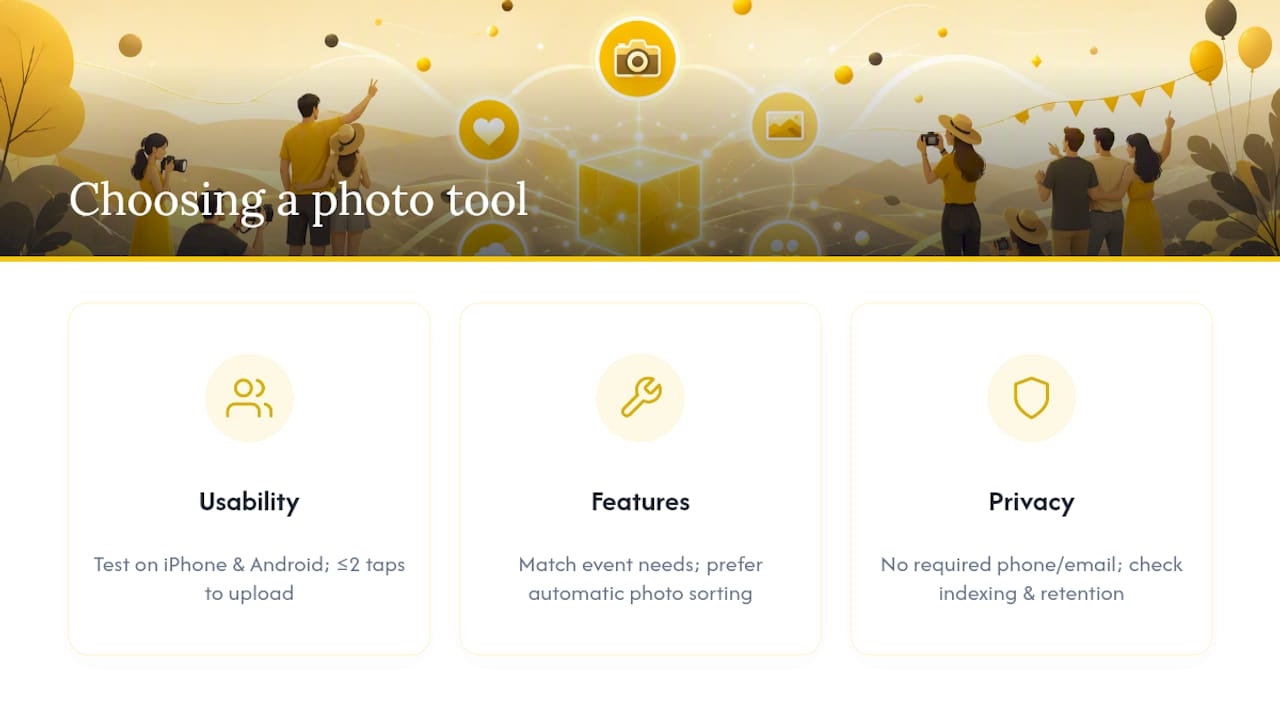
Three things matter more than any feature list: whether guests can actually use it without friction, whether it does what your specific event needs, and whether it protects the people contributing to it.
Usability comes first because a platform nobody uses is worthless regardless of what it can do. Test any tool yourself on both an iPhone and an Android phone before the event, not after guests start complaining. If it needs an account, a download, or more than two taps to start uploading, expect a chunk of your guest list to simply not bother.
Features worth prioritising depend on your event type. A wedding benefits from a guest book and RSVP tools alongside photo collection; a corporate event might care more about password-protected access and clean, exportable galleries for internal use. Look for genuine extras, like automatic photo sorting, rather than a long feature list padded with things you’ll never open.
Privacy should be non-negotiable. Check whether the platform requires guests to hand over a phone number or email just to contribute, whether the gallery link is indexed or searchable, and how long photos stay accessible before removal. A platform that asks guests for less personal information, while still delivering a properly organised gallery, is doing its job correctly.
A gallery full of unsorted photos from forty different phones is only useful if someone actually organises it, and that job gets much easier with the right approach from the start.
Start by letting automatic sorting do the heavy lifting where it’s available. AI-driven smart albums, of the kind built into modern event galleries, group images by time, similarity, or event moment automatically, saving hours of manual scrolling.
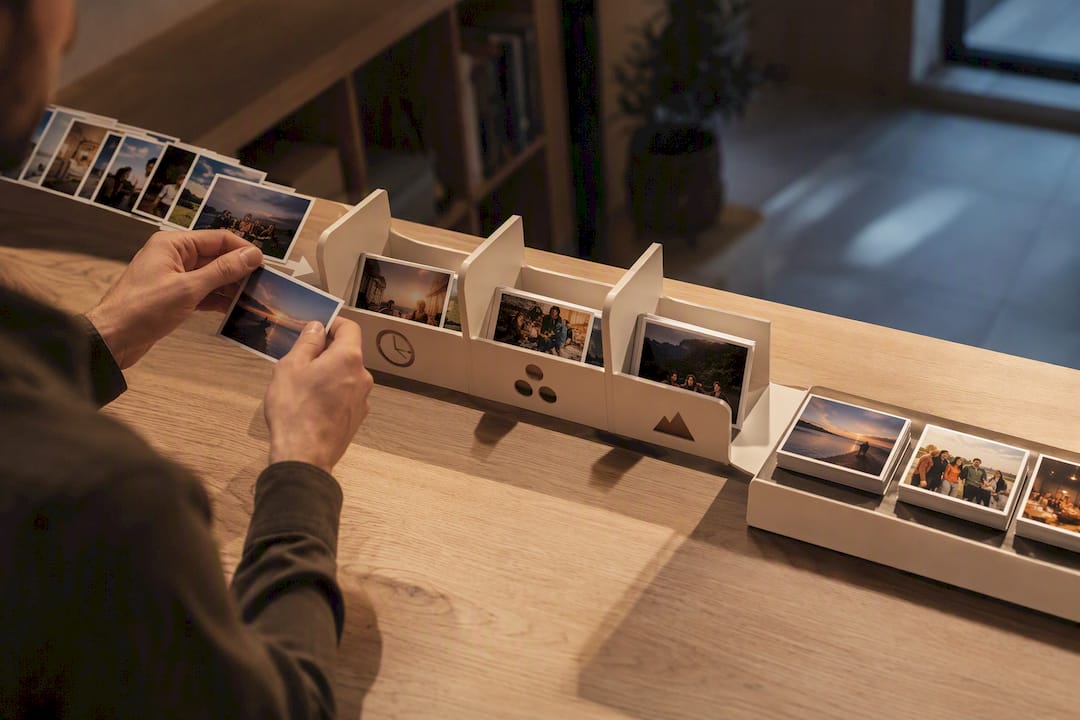
Once the gallery closes or the upload window ends, download the full set at full resolution rather than relying on the platform to host everything indefinitely. Create a simple folder structure by moment (ceremony, reception, speeches) rather than trying to sort every image individually. Delete obvious duplicates and blurred shots early, since that pile only grows harder to manage the longer it sits.
Back up the final set in at least two places, such as a cloud folder and an external drive, before you let any temporary gallery link expire. Most event galleries, SnapPix’s included, run on a defined hosting window rather than permanent storage, so treat the download step as mandatory, not optional, and do it within the first few weeks rather than leaving it until the window is about to close.
Most organisers over-engineer the technology and under-engineer the ask. Three things move the needle more than any feature: a QR code guests can actually see (table cards beat posters every time), a spoken thirty-second request during a natural pause in the event, and one person on hand to help anyone stuck. At a birthday gathering I watched recently, uploads barely trickled in until the host simply said, out loud, “scan this before you leave”, and the gallery filled up within the hour. People don’t resist uploading photos. They resist being asked to think too hard about how.
[Liam’s professional bio or credentials]
— Liam
Some commercial photo-collection platforms work on a single one-time fee per event, not a subscription, activating event galleries for unlimited guest uploads and allowing full-resolution downloads later.
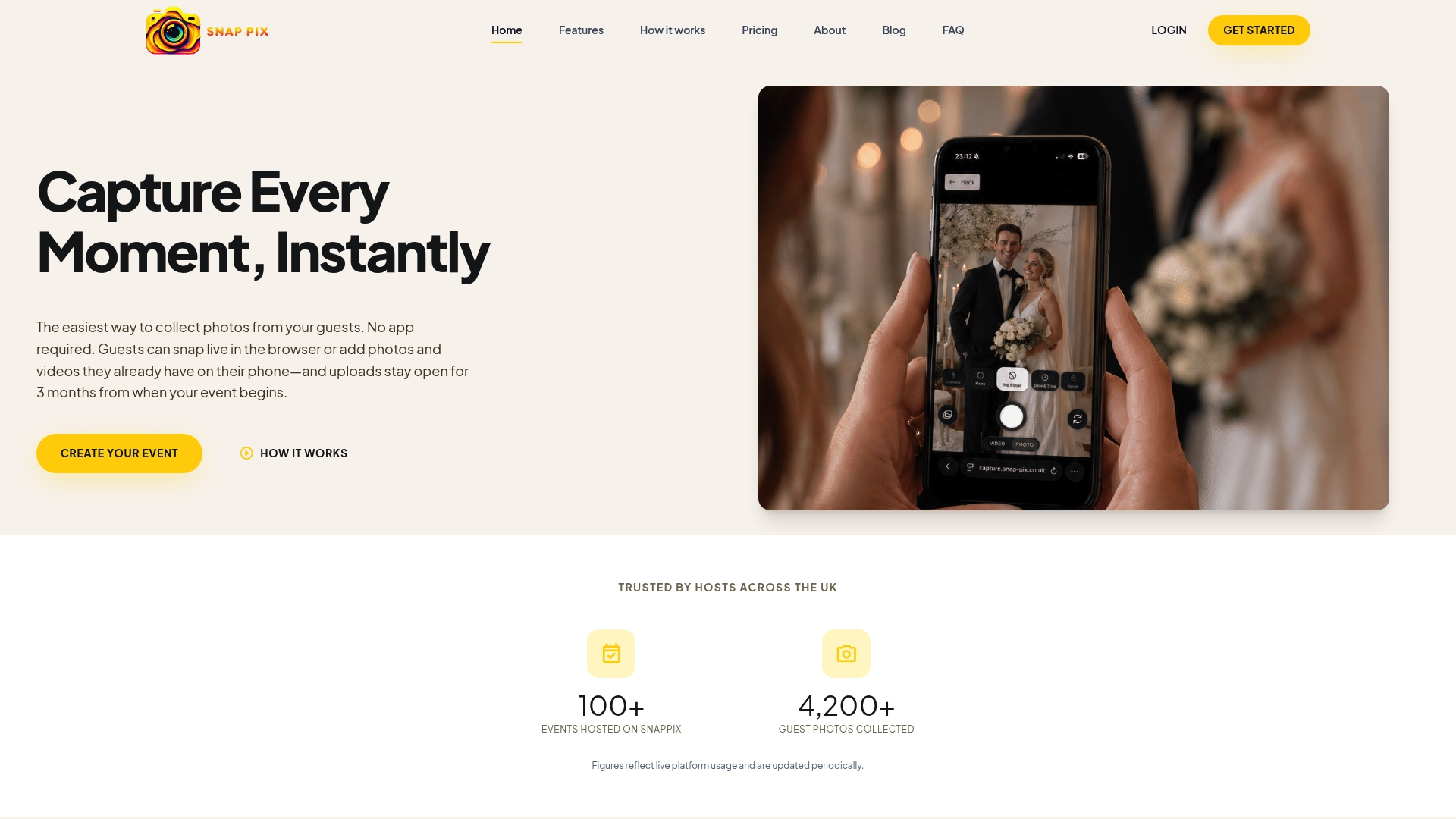
Compared with wrestling permissions on a shared cloud folder or asking forty guests to install yet another app, setting up a QR code gallery takes minutes and asks nothing of your guests beyond a single scan. To start, head to the SnapPix event page, create your gallery, and you’ll get your printable QR code straight away, ready for table cards, signage, or your digital invite. From there, check the feature overview if you want photo challenges or a digital guest book added to your event, or the deletion policy if guest privacy questions come up before the day.
The best approach doesn’t need an app at all: a QR-code browser upload gallery lets guests add photos instantly from any phone, and SnapPix is built specifically around this no-app model for events.
Use a QR-code upload link, a shared cloud album, AirDrop for nearby devices, or email and WeTransfer with original attachments rather than forwarded, compressed copies.
A QR-code browser gallery placed on table cards or signage works best for weddings, since it handles large, mixed-device guest lists without asking anyone to install anything or share a phone number.
Generate a single upload link or QR code, share it once via signage or a digital invite, and let every guest add photos directly through their browser with no account required.

Stop chasing guests for photos. Learn how to centralize event photos in one QR gallery, with a simple workflow, privacy basics and copyright tips for hosts.

How to collect and share trade show photos from booth staff and visitors with a QR code, no app needed: setup, consent, challenges and a post-show workflow.

Share your event gallery with guests the easy way: collect photos by QR code, organise them, then send one private link. Steps, timing and common mistakes.